

422 error and the event is not delivered.
Using the dashboard
1
Navigate to the Events Page
The Events page shows all existing events.
2
Click the Add Event button
Click Add event to create a new event.
3
Enter Event Details
Enter the event name and optional schema to define the event payload you will send with the event.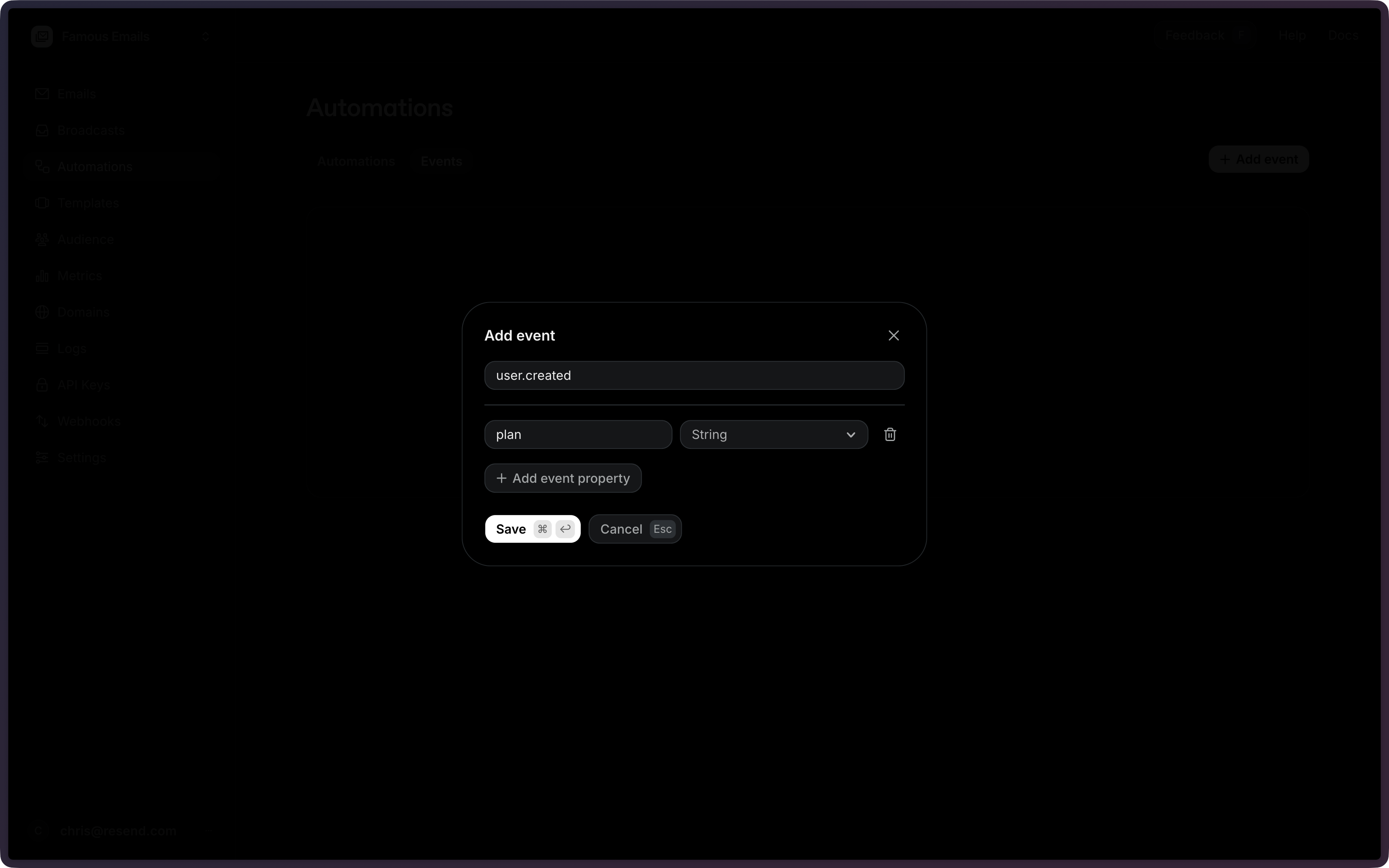
The event name can be any string (e.g.,
user.created, welcome,
my-custom-event). Dot notation is a recommended convention but is not
required. If multiple enabled automations use the same event name, all of them
will be triggered.4
Save the Event
When you’re done, Save the event.
Using the API
All existing events can be retrieved using the List Events API. To create a new event, use the Create Event API and provide an event name and optional schema.The event name can be any string (e.g.,
user.created, welcome,
my-custom-event). Dot notation is a recommended convention but is not
required. If multiple enabled automations use the same event name, all of
them will be triggered.Configuration
string
required
The name of the custom event to create. Used to match events to automation triggers.
object
An optional schema definition for the event payload. Must be an object with
flat key/type pairs. Supported types:
string, number, boolean, date.Example